

CRM (LeadConnector)
Bring WhatsApp into CRM Conversations with the Wappfy app: install, use, workflow actions and troubleshooting.
The Wappfy for WhatsApp app connects a WhatsApp number you connected in Wappfy to a sub-account in your CRM. No code and no API key are needed: installation goes through your CRM's own authorization.
What it does
- Incoming WhatsApp messages appear in your CRM Conversations, under the Wappfy channel. If the sender is not a contact yet, Wappfy creates the contact with their WhatsApp profile name.
- Replies sent from the CRM on the Wappfy channel go out from your WhatsApp number, and their delivered and read status comes back to the CRM.
- Workflow actions send WhatsApp text, images and audio from your CRM workflows.
Requirements
- A Wappfy account at app.wappfy.io, with your WhatsApp number connected (Connections, status Connected). You must be the owner of that connection.
- An active Wappfy plan or free trial.
- A CRM sub-account where you can install marketplace apps.
Install from Wappfy
This is the recommended path: you start from the connection, so it is linked to the sub-account automatically.
Open the CRM card in Wappfy
In app.wappfy.io, go to Connections, open your connection and the Integrations tab. On the CRM (LeadConnector) card, click Activate.
Open CRM
In the Connect with CRM dialog, click Open CRM. The CRM opens in a new tab; sign in if it asks.
Review the permissions
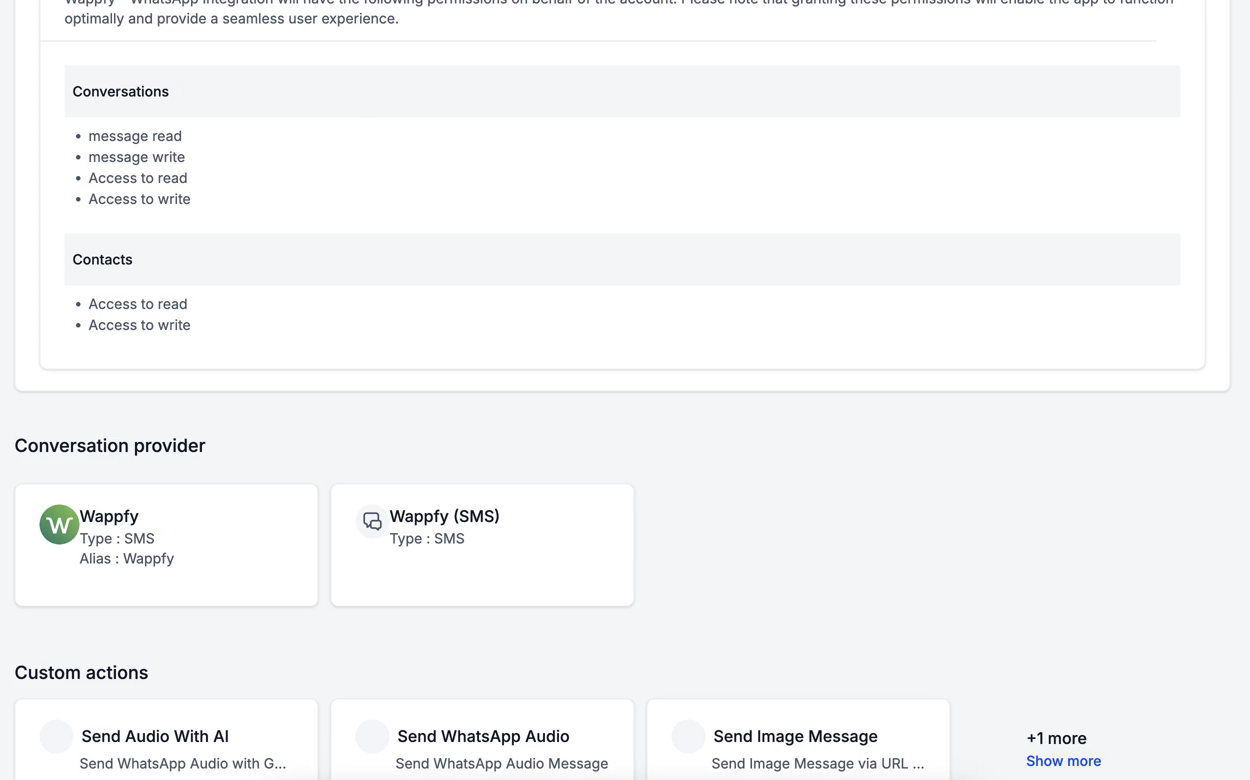
The CRM shows what the app can access: Conversations and Contacts. The reason for each permission is in Permissions.
Choose the sub-account
Pick the sub-account this WhatsApp number will serve.
Check the Wappfy channel
On the screen "Select which providers you would like to install", check Wappfy, then click Proceed.
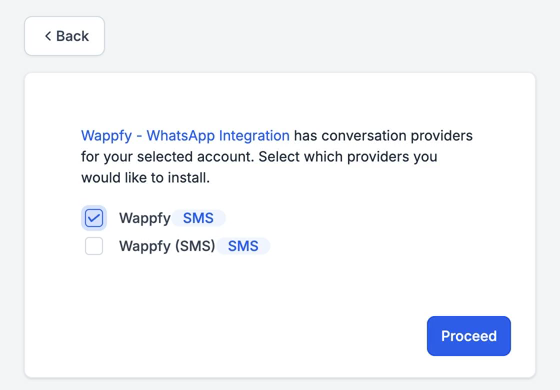
Wappfy comes unchecked. If you click Proceed without checking it, the installation still finishes, but no WhatsApp message reaches the CRM. If that happens, install again and check Wappfy.
Back in Wappfy: Connected!
The CRM sends you back to Wappfy, which shows Connected! and the sub-account linked to your connection. Messages now flow in both directions.
Installed straight from the marketplace?
If you installed the app from the App Marketplace instead of starting in Wappfy, the CRM sends you to Wappfy at the end with the screen Pick the connection to finish:
- Click Sign in to Wappfy if you aren't signed in.
- Choose the WhatsApp connection that will serve this sub-account and click Connect.
Until you choose a connection, nothing flows between WhatsApp and that sub-account. Here too, the Wappfy channel must be checked during the installation.
Using it
- Incoming messages appear in Conversations, on the contact's conversation, marked with the Wappfy channel.
- To reply, open the conversation and pick Wappfy in the channel selector of the reply box, then send as usual.
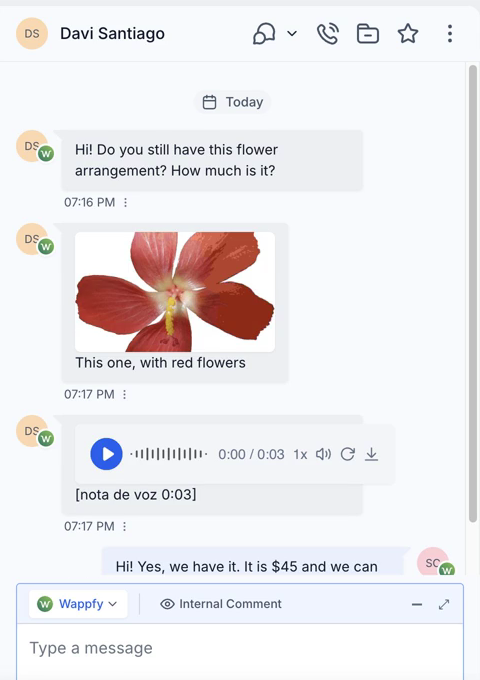
Anything sent on the SMS channel does not go through Wappfy and is not delivered on WhatsApp. Always check that Wappfy is selected in the reply box.
What is supported
| Direction | Supported |
|---|---|
| WhatsApp → CRM | Text, photos (with caption), documents, voice notes, locations, contact cards and replies quoting a message |
| CRM → WhatsApp | Text and attachments sent from the reply box |
| Status in CRM | Delivered and read |
- If the number you reply to has no WhatsApp account, the message is marked as failed in CRM, with the reason.
- Group messages and WhatsApp Status updates are not sent to CRM: only one-to-one chats are.
Workflow actions
The app adds actions you can use in CRM workflows. The message is created in the contact's conversation and delivered through the Wappfy channel, just like a reply typed by an agent, so it shows up in Conversations with its status.
| Action | Fields |
|---|---|
| Send Text Message | contact_, text (required) |
| Send Image Message | contact_, image (required), caption |
| Send WhatsApp Audio | contact_, audio (required) |
contact_phone: the recipient's number with country code, such as+5581999999999. Leave it empty to send to the contact the workflow is running for.imageandaudio: a publichttpsURL of the file. For audio, use an OGG (Opus) file so it arrives as a voice note.caption: optional text shown under the image.- The sub-account must be linked to a Wappfy connection (installed as above). Otherwise the action returns an error and nothing is sent.
Send Audio With AI is listed in the app but is not available yet.
Uninstall and reinstall
- Uninstall: in CRM, uninstall the Wappfy app from the sub-account (from the app's page in the Marketplace, choose Uninstall and select the sub-account). Wappfy marks the integration as Uninstalled and stops sending messages to that sub-account.
- Turn it off on the Wappfy side only: open the CRM (LeadConnector) card on the connection and click Disconnect.
- Reinstall: open the CRM (LeadConnector) card on the connection again and follow Install from Wappfy, picking the same sub-account and checking Wappfy. On a connected card, the Reconnect button takes you through the same steps.
Troubleshooting
- The Wappfy channel was not checked during installation. This is the most common cause: the installation shows Connected!, but WhatsApp messages don't reach the CRM. Open the CRM (LeadConnector) card on the connection in Wappfy: Last error shows the reason. Reinstall, pick the same sub-account and check Wappfy before clicking Proceed.
- The WhatsApp connection is disconnected. The card shows a warning. Reconnect the number in Connections.
- The free trial reached its limit. The card shows a warning. Messages go to CRM again once you subscribe to a plan.
- The app was uninstalled, or CRM refused access. The card is marked Uninstalled or Reauthorize. Install again on the same sub-account.
- It is a group message or a Status update. These are not sent to CRM.
- The reply went out on the wrong channel, usually SMS. Pick Wappfy in the reply box and send again. If no reply has come through since the link, the CRM (LeadConnector) card in Wappfy warns about it.
- The number has no WhatsApp account. The message is marked as failed in CRM, with the reason.
The app was installed from the marketplace and the installation ended before a Wappfy connection was chosen. Nothing flows to that sub-account yet. Open the CRM (LeadConnector) card on the connection that should serve it and follow Install from Wappfy, picking that sub-account and checking Wappfy.
Permissions
The app asks CRM for six permissions, and uses each one only for the following:
| Scope | Used for |
|---|---|
contacts. | Finding the contact by phone number, and reading the phone number when CRM only sends the contact id. |
contacts. | Creating the contact for someone who wrote on WhatsApp, with their WhatsApp profile name. |
conversations. | Finding the contact's conversation. |
conversations. | Creating the conversation when it doesn't exist yet. |
conversations/ | Reading the messages CRM delivers to the Wappfy channel, to send them on WhatsApp. |
conversations/ | Adding incoming WhatsApp messages to the conversation, and updating the delivered and read status of the messages you send. |
Wappfy does not access any other data in your CRM account.